Keystone Daily Planner
Inspired by the Preach My Gospel calendar and scheduling app, Keystone is the doorway to help you manage your time and life more effectively.
Why Keystone Is Different
Most productivity apps make you choose: a calendar app that ignores your goals, a habit tracker that doesn't know your schedule, or a personal CRM that lives nowhere near either. Keystone puts all of them together, where they actually belong — next to each other, because that's how a real day works.
Keystone Pro
Keystone is 100% free to use and ad free, but Keystone Pro is a great way to help support development and get access to a bunch of other cool features.
More Customization
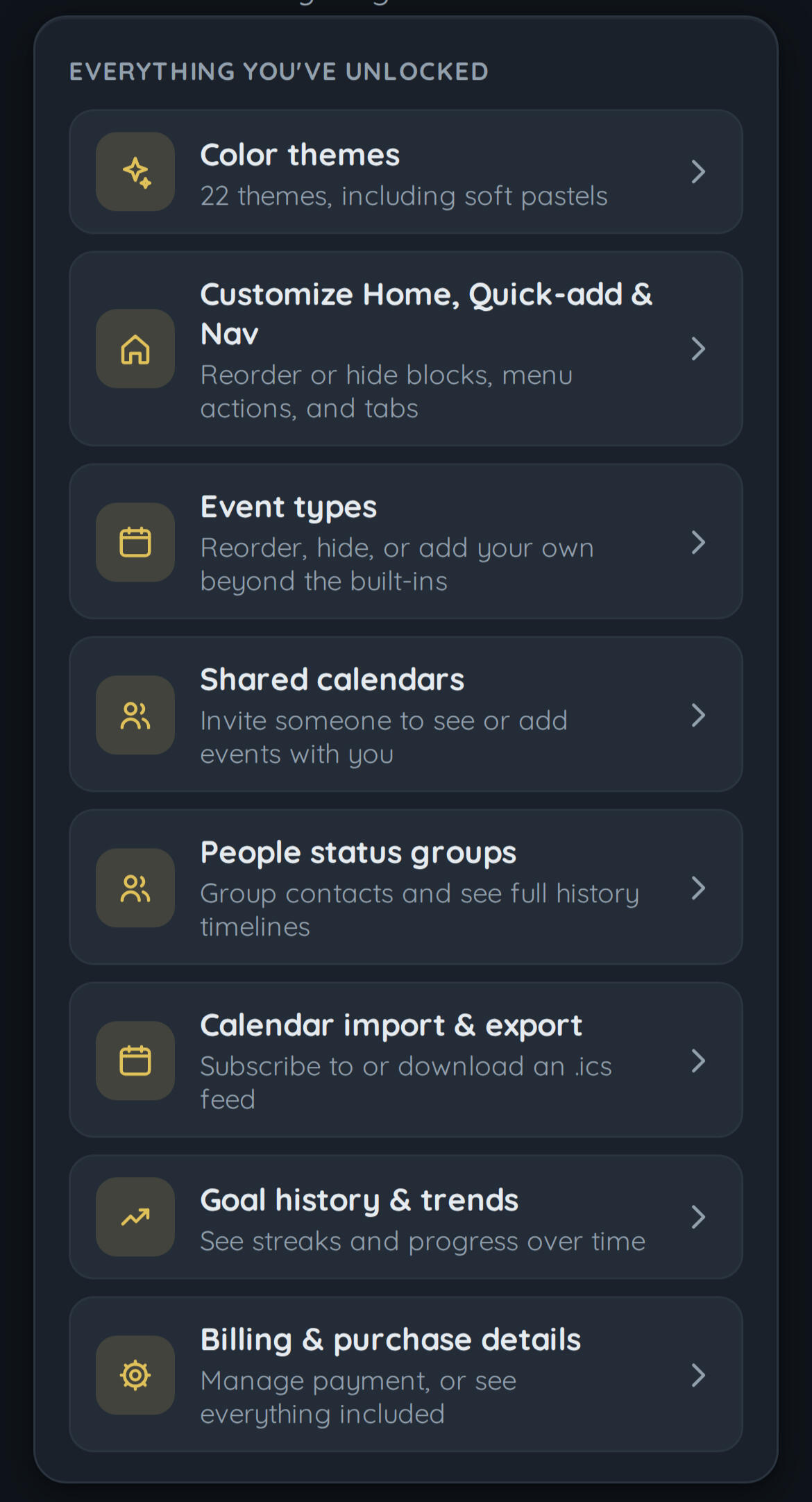
With 22 different color themes, app layout customization, custom event types, and more, you can make Keystone uniquely yours.
Synced Data and Shared Calendars
With Keystone Pro you can sync to your Google Calendar and Contacts to always be up to date on events that others share with you. As well as import .ics files for calendars and contact lists.
Goal Tracking and More
Enhanced Goal tracking and performance logs. Also includes goal streak insurance for when you might miss a day.
Keystone Pro
A one time, life-time purchase to both increase your productivity, but also support our development of new features. Which you will always have access to!
Keystone Pro
$9.99
Join The Waitlist!
Be the first to know when Keystone is available to download!
Or Follow Us Online
Contact us through Email, Instagram, or Facebook to suggest new features or provide feedback!
All rights reserved
Terms of Service
Updated October 5, 2026Keystone is made by KeyStone Software. These terms cover your use of Keystone. By using the app, you agree to them. If you don't agree, please don't use Keystone.The serviceKeystone is a personal calendar, goals, and contacts app. Core features are free. Pro is an optional one-time purchase that unlocks additional features listed on the pricing page. It is not a subscription, and there's nothing to cancel once purchased.AccountsAn account is only required for cloud sync, shared calendars, and buying Pro. You're responsible for keeping your sign-in credentials secure, and for anything that happens under your account.PurchasesPro is billed once, through the App Store or Google Play depending on where you bought it. Refunds are handled according to that platform's own refund policy: Apple's or Google's store policies, depending on where you purchased.Your contentYou own what you put into Keystone: your events, goals, notes, and contacts. You're responsible for the accuracy of anything you enter, including information about other people (for example, a contact's phone number or address). Don't use shared calendars or invites to spam, harass, or contact someone who hasn't agreed to it.TerminationYou can delete your account at any time from Settings → Account. We may suspend or terminate access for use that violates these terms, such as abusing the sharing or invite features.DisclaimerKeystone is provided "as is." Reminders, travel-time warnings, and route suggestions are estimates meant to help you plan. They're not guarantees, and you're responsible for confirming anything time-sensitive or safety-related yourself. To the extent the law allows, we aren't liable for indirect or consequential damages arising from your use of the app.Changes to these termsIf these terms change materially, we'll update the date above and let you know in the app.ContactQuestions about these terms can go to [email protected].
Privacy Policy
Updated October 5, 2026Keystone is made by KeyStone Software and built around one idea: your calendar, your goals, and your people are your data, kept on your device by default. This page explains what that means in practice: what Keystone collects, when (if ever) it leaves your device, and how to delete it.What stays on your deviceEverything you enter (events, goals, tasks, notes, contacts, map pins, and app settings) is stored locally on your device. Keystone works fully offline, and none of this is sent anywhere unless you turn on one of the optional features below.If you turn on automatic backups, or export one manually, from Settings → Your data, Keystone also saves a copy of your data as a file in your device's Documents folder, outside the app's own private storage. Unlike everything else on this page, that file is visible to other apps on your device with file access, though it still never leaves your device unless you move it yourself.What can leave your device, and why
An account (optional). Signing in creates an account via our authentication provider, Clerk, which stores your email address. You don't need an account to use Keystone's free features.
Cloud sync (optional, Pro). If you turn this on, your app data is stored on our server so it can follow you to another device. It's off by default.
Shared calendars (optional, Pro). If you create or join a shared calendar, the specific events on that calendar are visible to the specific people on it. Nothing else in your data is shared.
Location (optional). Keystone only uses your device's location if you actively use a location feature: dropping a pin, geocoding a contact's address, or setting up an arrival reminder. It doesn't track your location in the background beyond what an arrival reminder you've explicitly set up needs to fire.
Map search and address lookup. Searching the map, dropping a pin by address, or entering a contact's address sends that search text to OpenStreetMap's Nominatim service to look up coordinates, and map tiles are loaded from OpenStreetMap. Both happen directly from your device, without going through our server. Keystone doesn't control what OpenStreetMap does with that traffic; see their own privacy policy.
Google Calendar & Contacts (optional, Pro). If you choose to connect Google in Settings → Account & sync, Keystone requests read/write access to your Google Calendar and read-only access to your Google Contacts. Contacts is a one-time import into your local data, same as picking a .vcf file. Calendar is kept in sync going forward, in both directions, while the app is open: single (non-repeating) events you create, edit, or delete in Keystone are pushed to your Google Calendar, and changes made on Google are pulled in the same way. This only happens while Keystone is open, not in the background. Our server holds a Google-issued token to do this, until you tap Disconnect (which also revokes it). Keystone's use of information received from Google APIs adheres to the Google API Services User Data Policy, including the Limited Use requirements: that data is used only to show and sync your own events/contacts, is never used for advertising, and is never sold or shared with anyone other than you.
Payment (Pro purchase). Payment is handled entirely by the App Store or Google Play, depending on how you bought Pro. Keystone never sees or stores your card details, only whether the purchase succeeded.
Who else sees itKeystone uses a small number of service providers to run: Clerk for authentication, Google (only if you choose to connect it, for the one-time import above), OpenStreetMap/Nominatim for map tiles and address search, and a hosting provider for the optional sync server. Each only sees the specific data their job requires (Clerk sees your email; Google sees only the read-only access you granted; OpenStreetMap sees the map area or address text you search; the sync server sees your data blob only if cloud sync is on). None of them are permitted to use your data for their own purposes. We don't sell data, and we don't run ads or third-party trackers in the app.Your data, your control
Delete individual events, goals, contacts, or notes any time, right in the app.
Disconnect Google any time from Settings → Account & sync. This revokes its access on Google's side and deletes the stored token; it doesn't remove events/contacts already imported, which is a separate, local action like anything else you've entered.
Clear all local data from Settings → Your data. This resets the app on this device.
Delete your account entirely from Settings → Account. This permanently removes your account, your Pro purchase record, and anything stored on the server for it (synced data, shared calendars you own). It doesn't touch data already saved on your device, which is a separate, local action.
Children's privacyKeystone isn't directed at children under 13, and we don't knowingly collect personal information from them.Changes to this policyIf this policy changes in a way that affects what we collect or how we use it, we'll update the date above and, for material changes, let you know in the app.ContactQuestions about this policy or your data can go to [email protected].
The Home Page
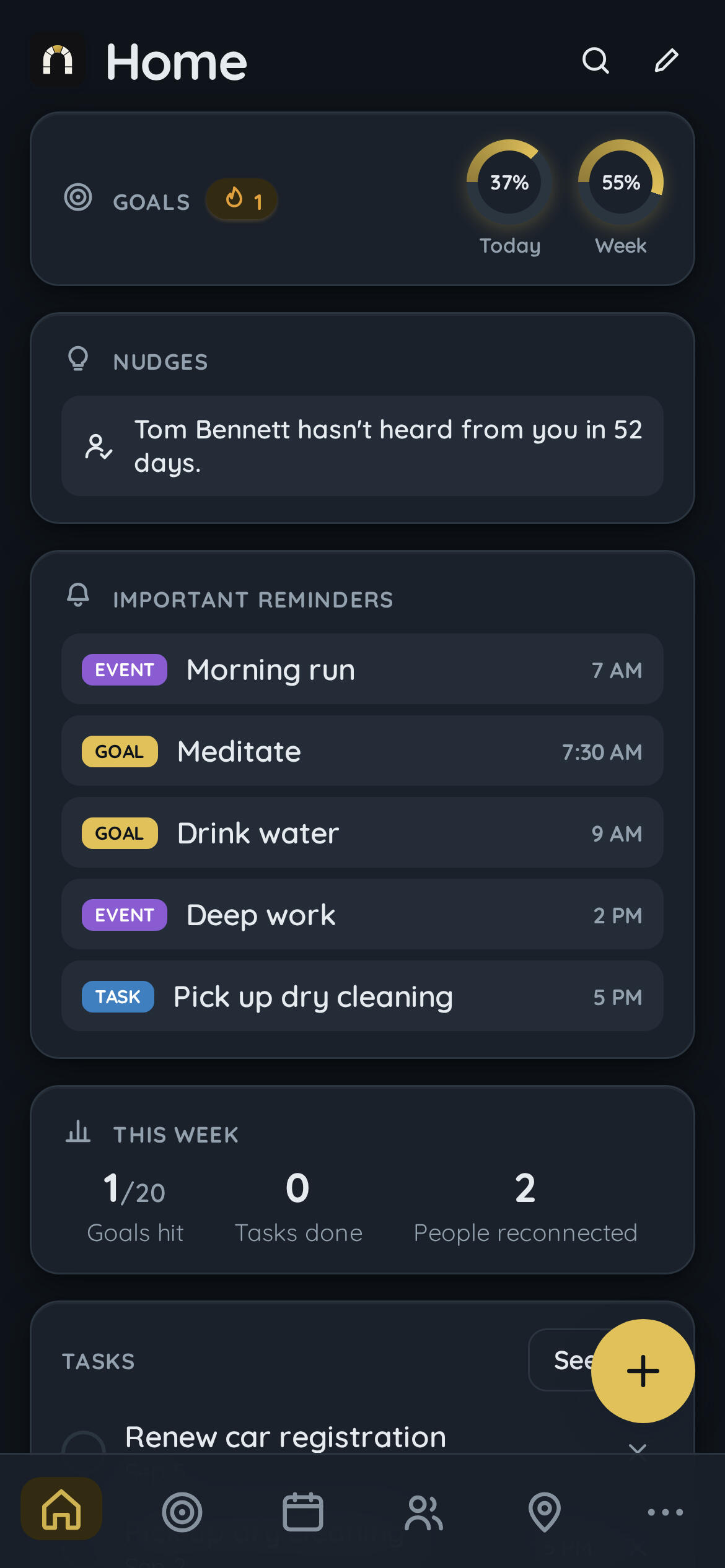
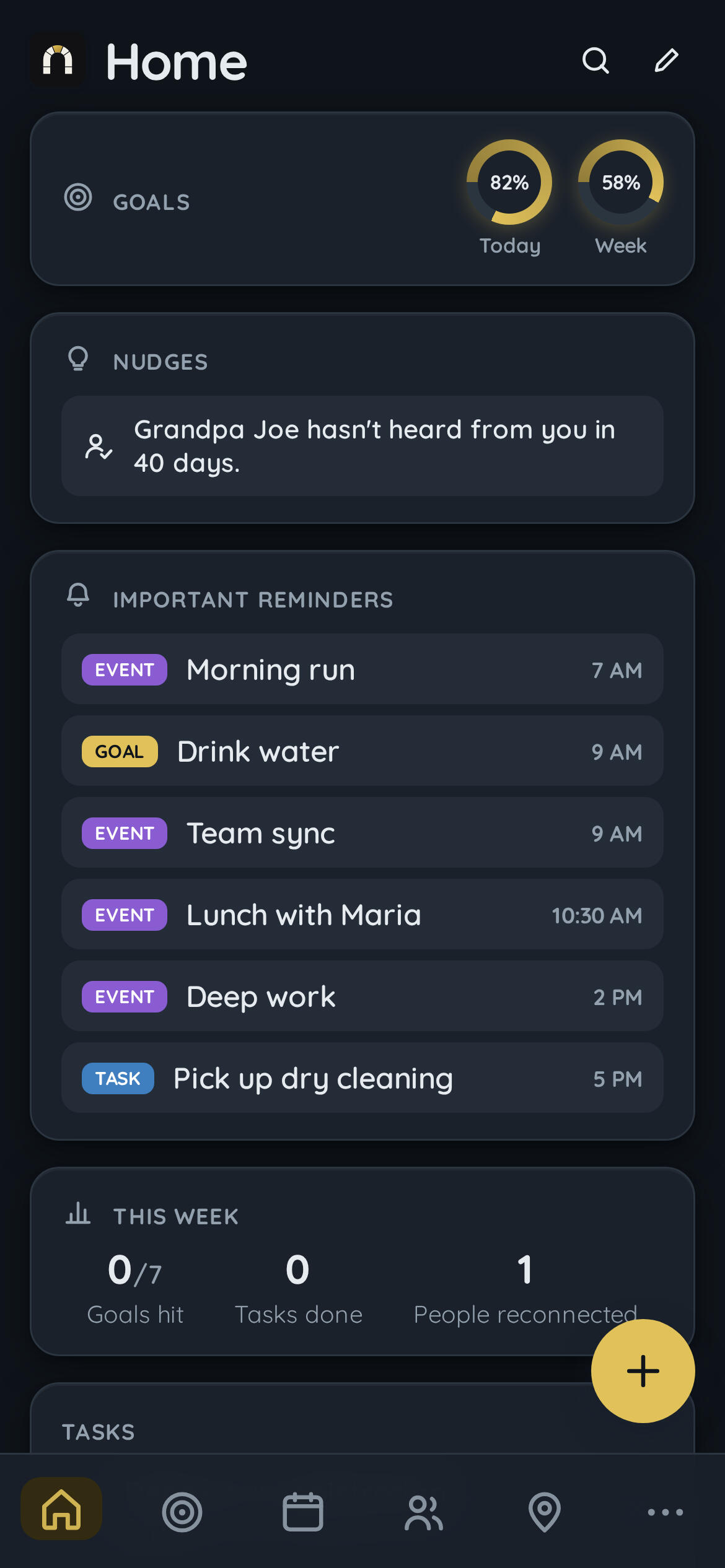
Home is the answer to "what does today actually look like" — the one screen you land on, not one of seven you have to check. It pulls together your goals' progress for today and this week, gentle nudges about people you haven't reached out to in a while, your most important reminders (events and tasks that matter most, not everything at once), a weekly recap of goals hit and people reconnected with, and your open task list — all in a glance, before you've tapped into a single other tab.
Goals
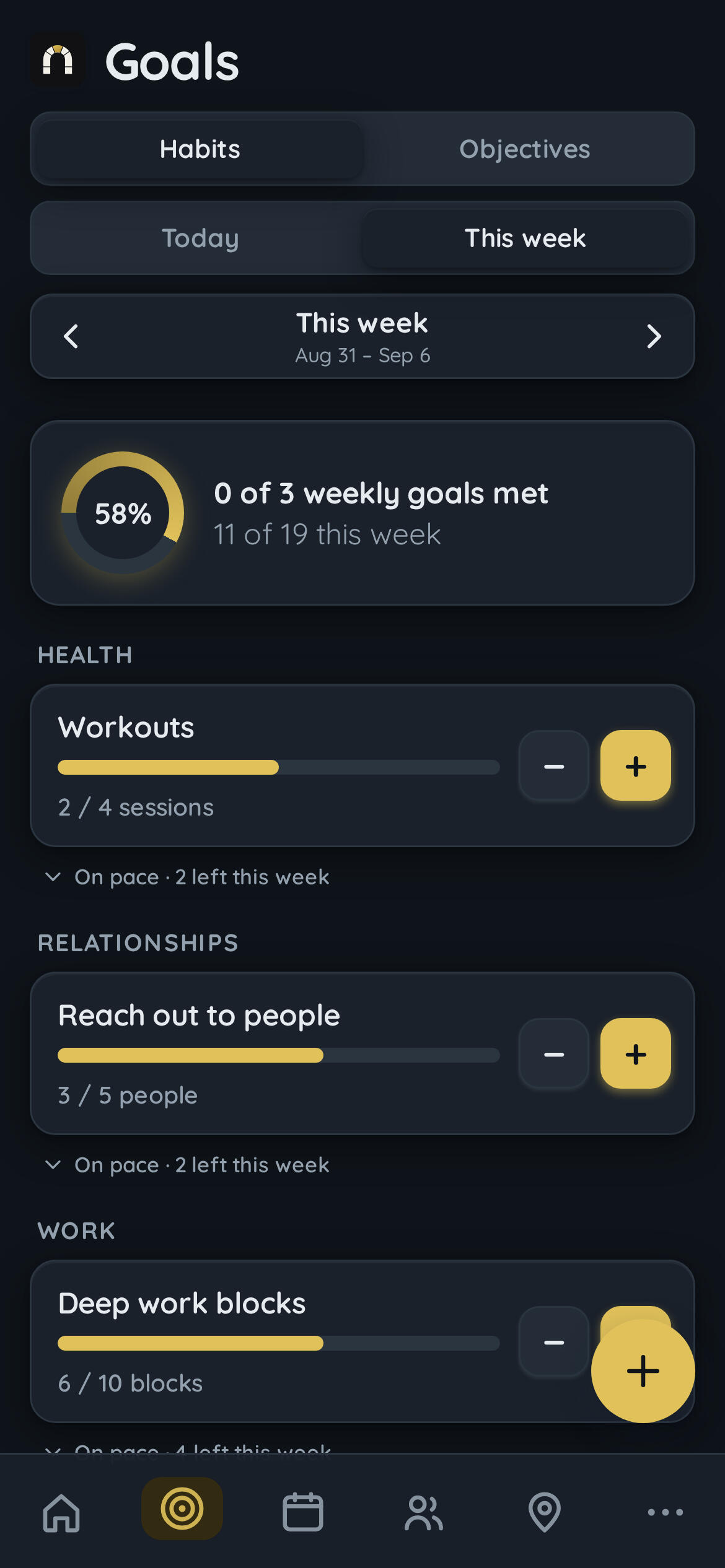
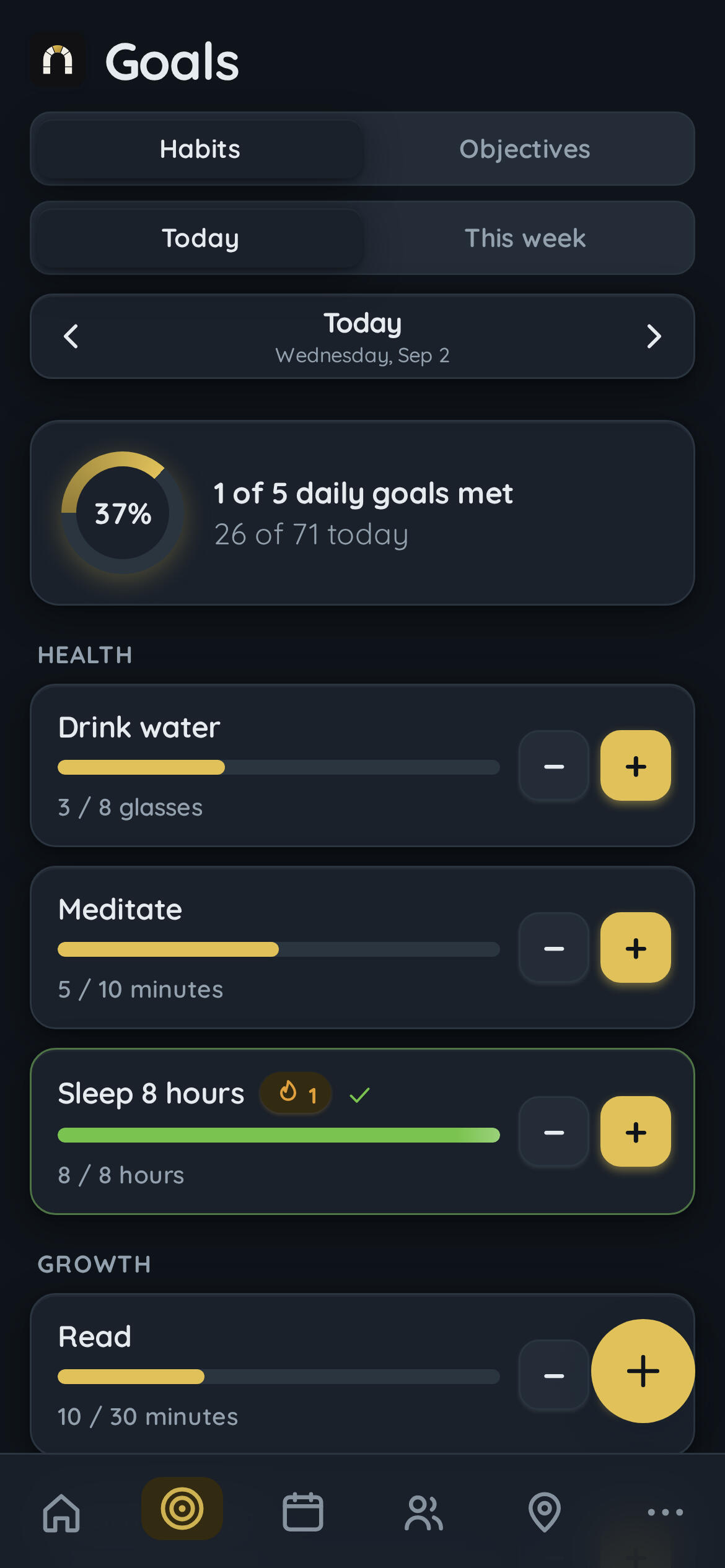
Goals covers two different kinds of progress on purpose, because "get better at something" and "hit a big target" aren't the same shape of problem. Habits are the daily and weekly stuff — drink water, read, work out — tracked with streaks, and streak freezes so one missed day doesn't quietly erase three weeks of consistency. Objectives are the bigger picture: quarterly or annual targets broken into concrete milestones, the kind of thing a daily habit alone doesn't capture ("get in shape" isn't a checkbox, but "run a 10k without stopping" is).
Calendar
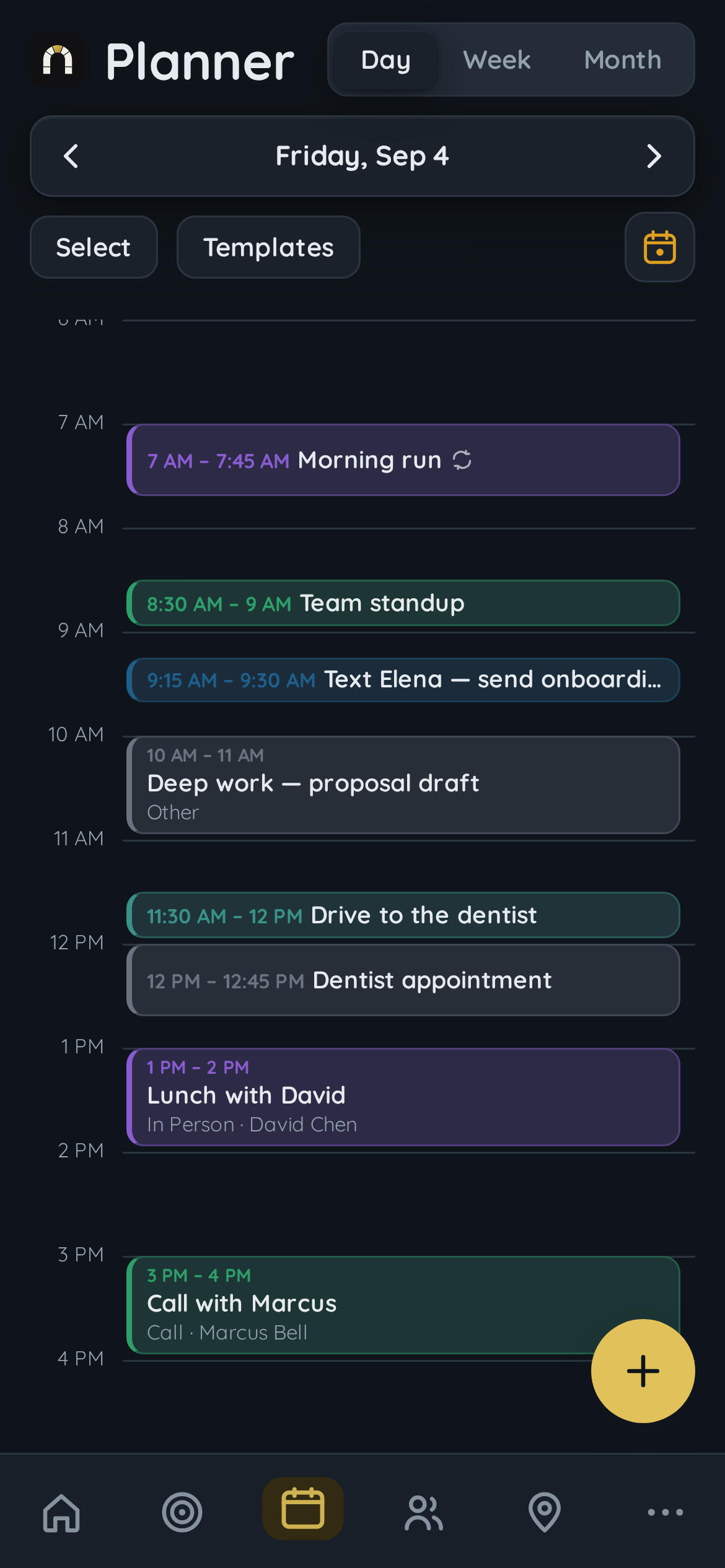
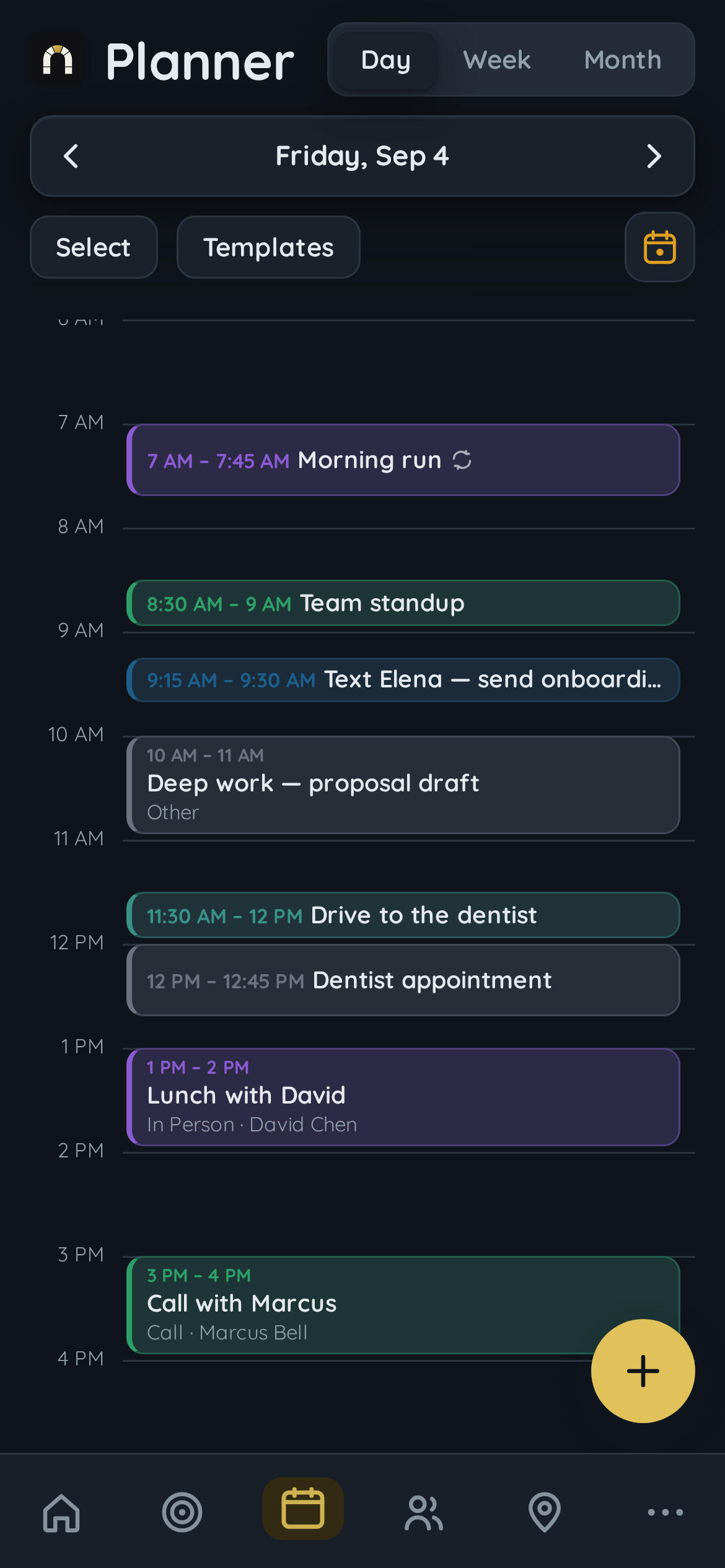
The day timeline is where the actual scheduling happens: an hour-by-hour view you build your day in directly, not just glance at. Events are draggable blocks — grab one and move it to a new time, resize it by dragging an edge, or select several at once and shift them all together. Tap any empty slot to create something new right there, at the time you tapped, instead of opening a form and typing a time by hand.
Contacts
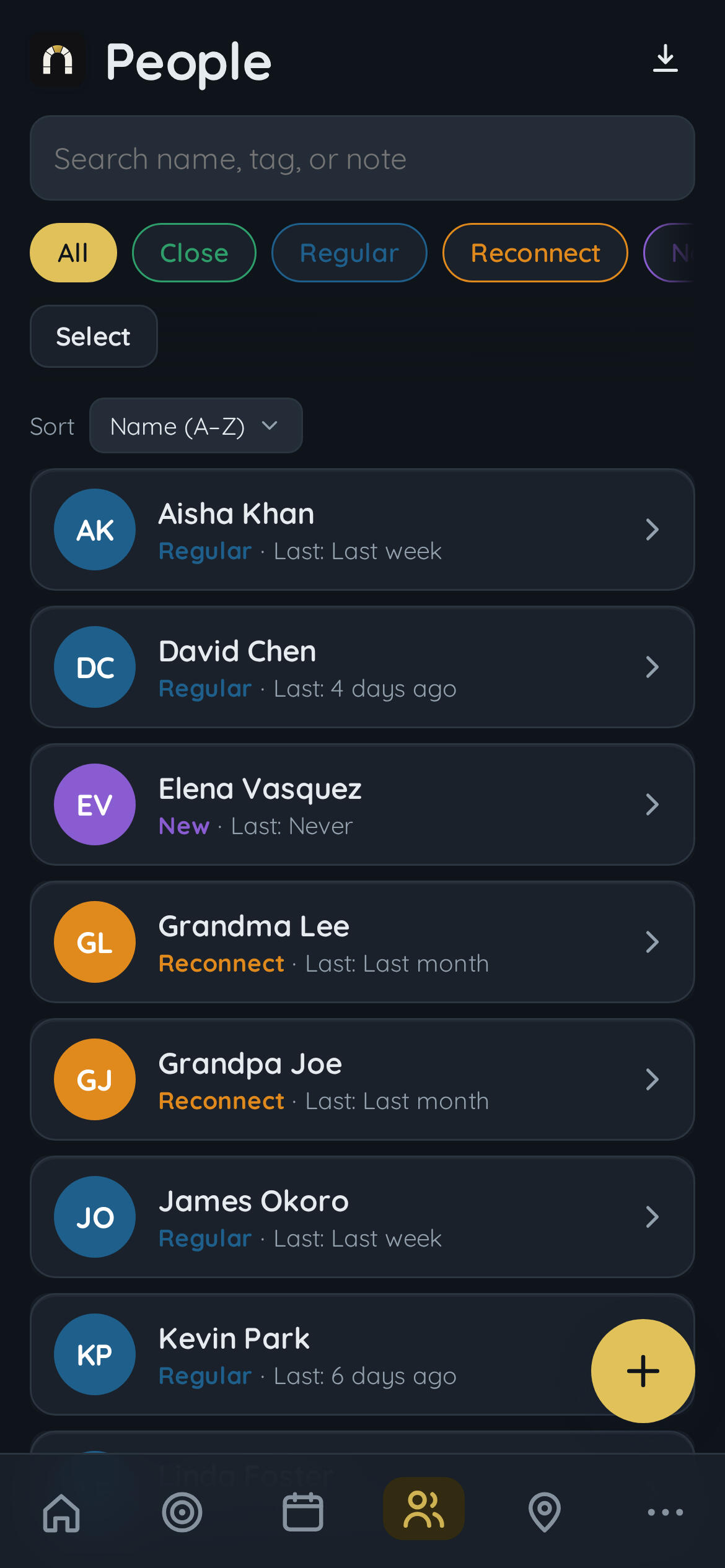
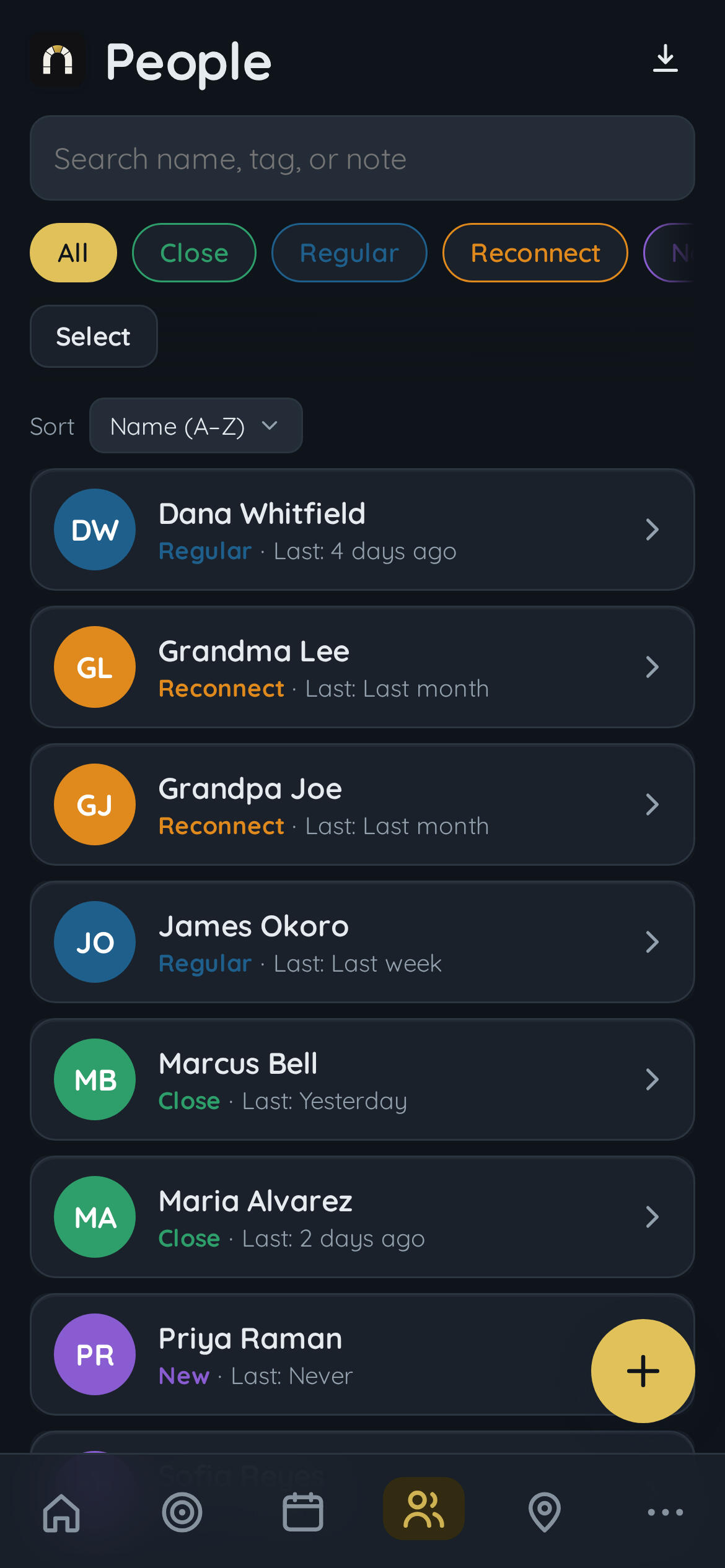
The Contacts list is a personal CRM, but built for a different job than a sales one: it's not tracking deals, it's answering "who have I been neglecting." People are sorted and tagged by status — close, regular, reconnect, new — and the ones you're overdue to reach out to are the ones that surface, not just an alphabetical wall of names you have to scroll past to find who actually needs attention.
Maps
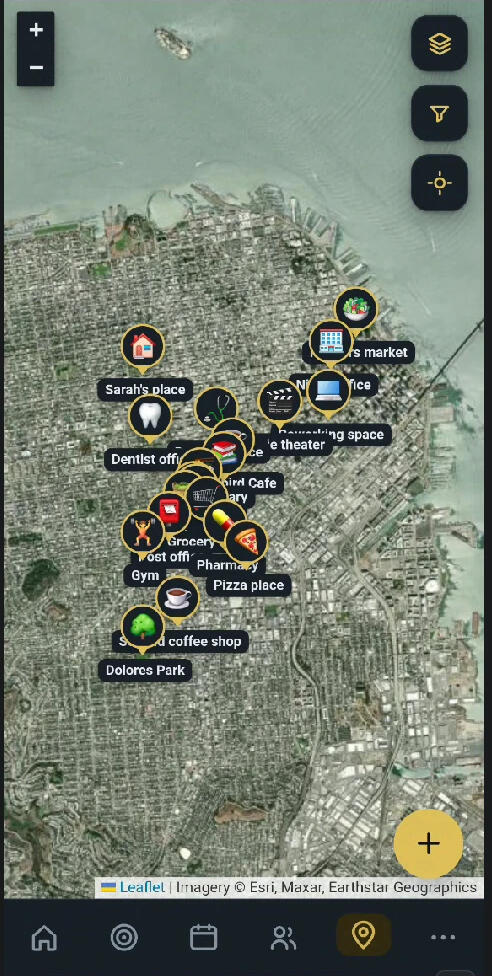
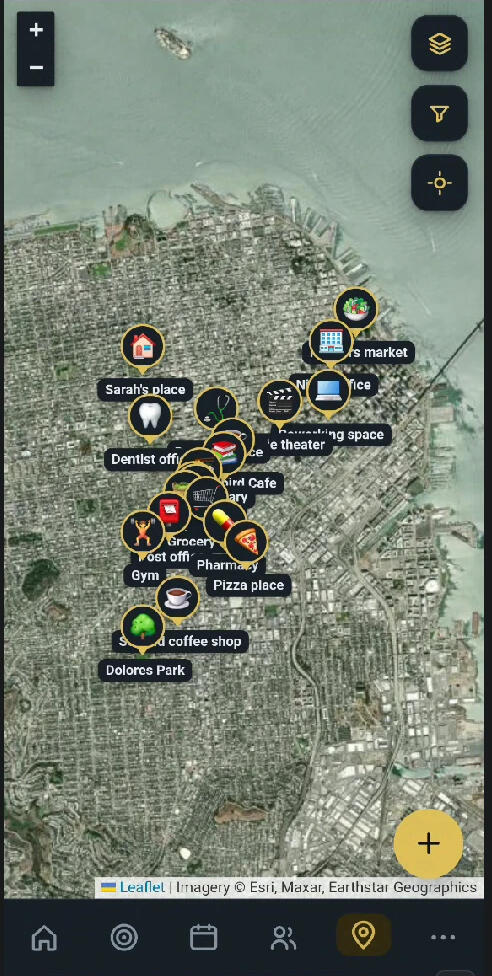
The map holds the physical side of your life — pins for home, work, a friend's place, the gym — and ties them to the people and events they belong to. A contact's address becomes a pin automatically; an event with a location shows up on the same map. It's there because "when" isn't the only axis a schedule runs on — "where" matters just as much, and most calendar apps treat it as an afterthought typed into a text field nobody ever looks at again.Pins carry their own notes too (the gate code, which entrance to use, what parking is like) — small details that are easy to forget between visits and inconvenient to dig up from a text thread when you actually need them.
Settings (More cool stuff)
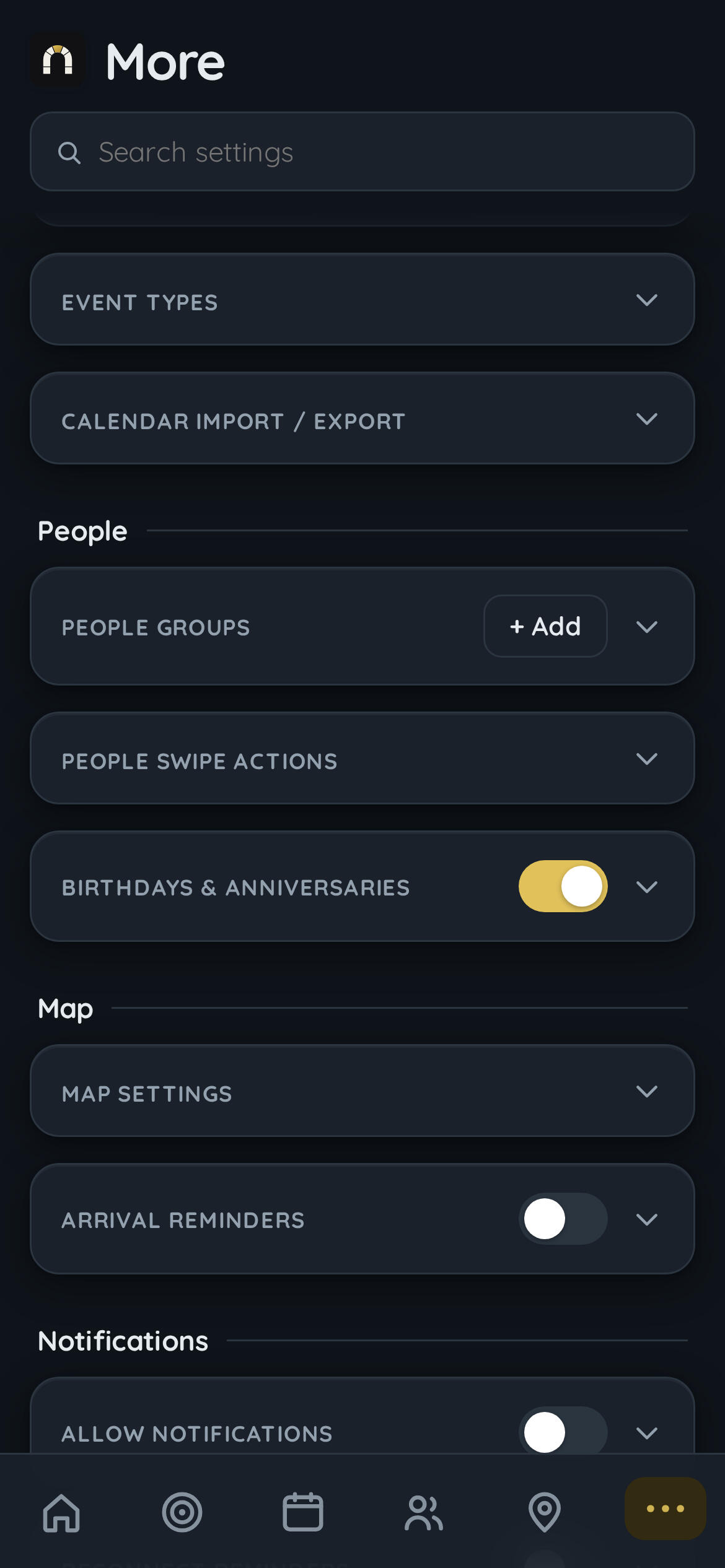
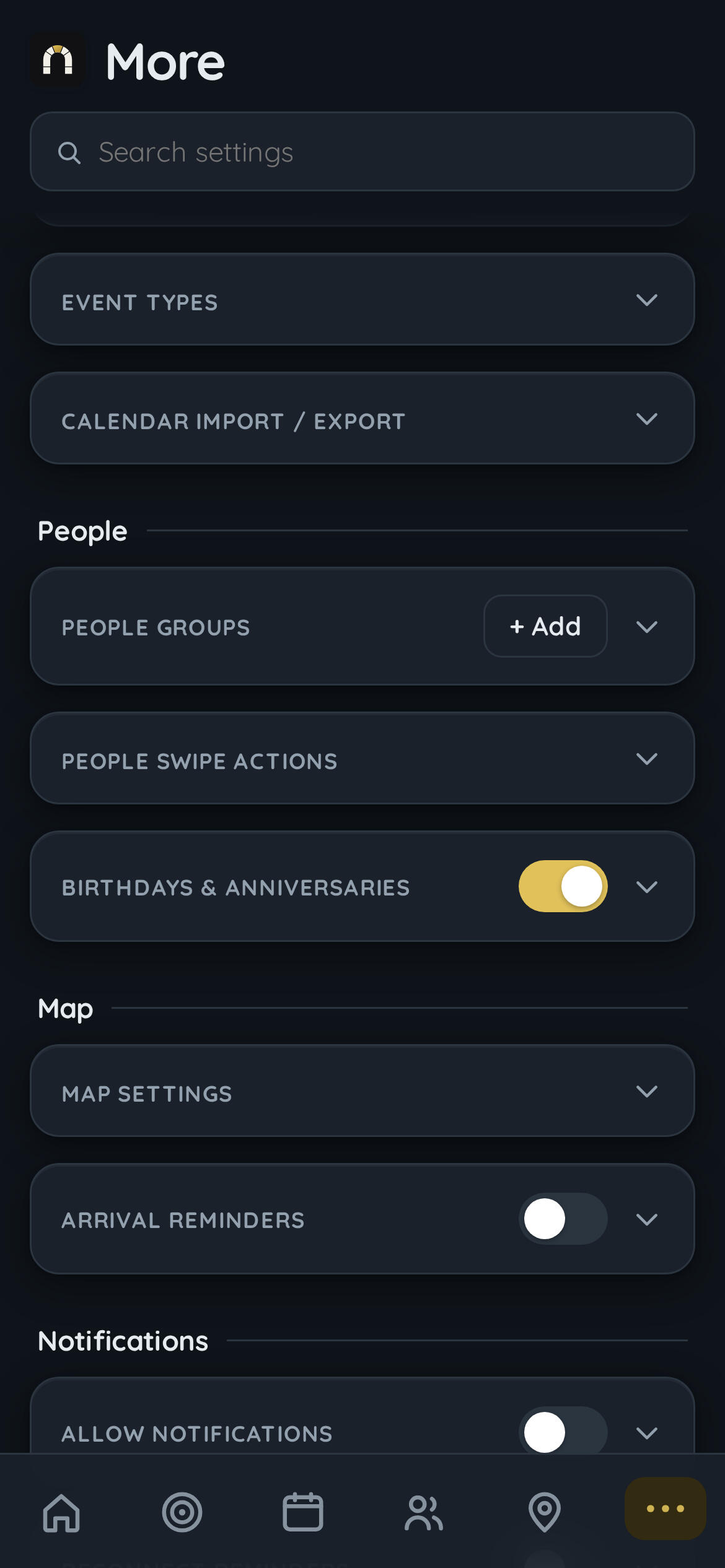
This is the control room: account and cloud sync, appearance and color themes, calendar behavior (week start day, default event length, timeline hours), notification preferences, and data management, all gathered in one place instead of scattered across every page they touch. It's deliberately not the page you live in day to day — it's the page that exists so the pages you do live in can stay uncluttered, with their configuration living somewhere else entirely.It's also where the app's customization actually lives: reordering the home screen, choosing what's in the quick-add menu, picking which tabs show in the bottom navigation. The philosophy is that a genuinely personal productivity app has to be adjustable, and adjustability needs a dedicated home so it doesn't turn every other screen into a settings panel.